How to Fax a PDF from iPhone
Have a PDF and a fax number? Here's how to send it as a fax from iPhone using Files, Mail, or a scan - and the preview trick that keeps it readable.
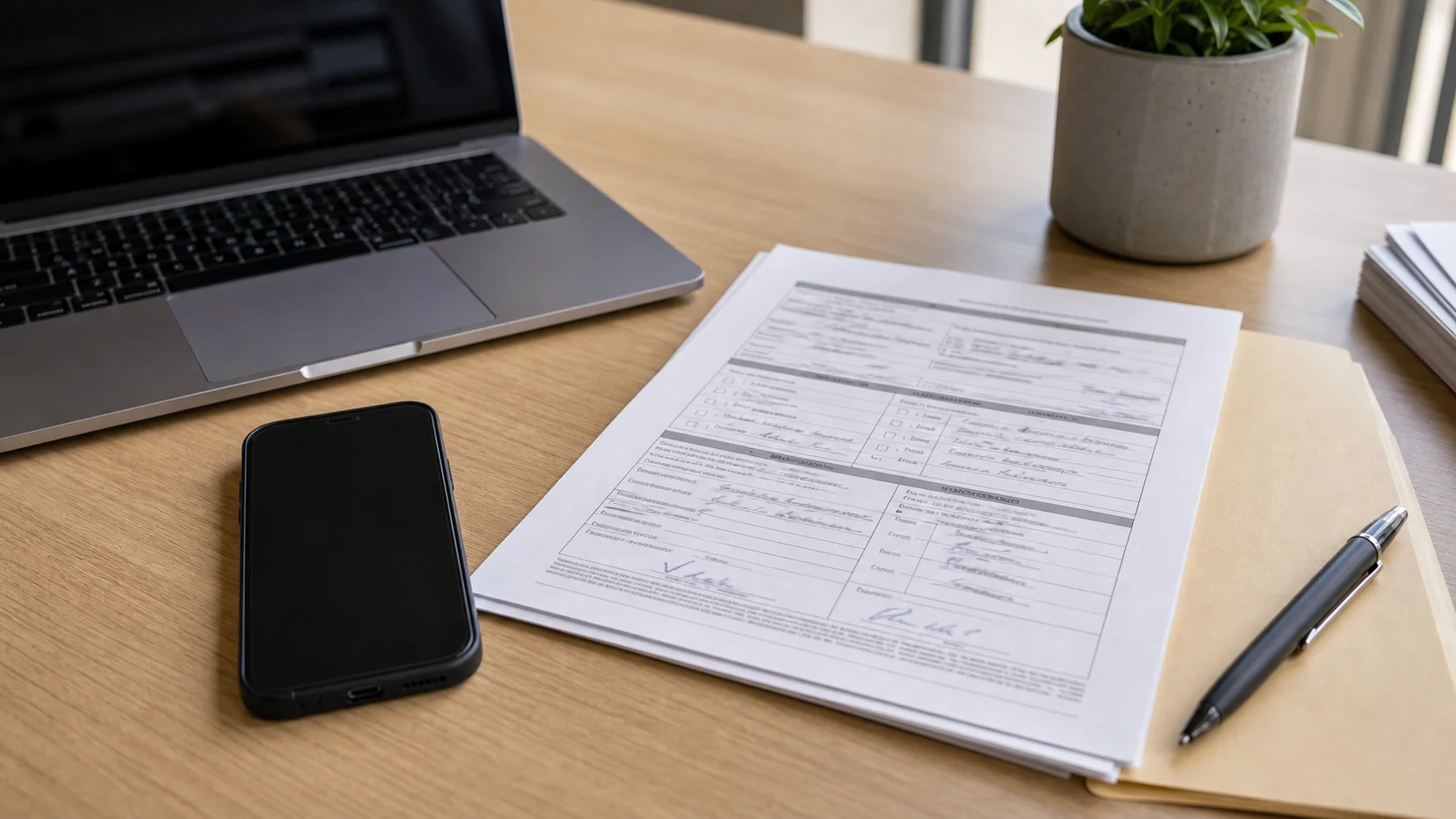
A PDF is about the easiest thing you can fax from an iPhone. If your document is already a PDF, there’s no printing, no re-scanning, and no moving it to a computer - you attach it from wherever it’s saved and send it straight from the phone.
That covers most of the paperwork that still travels by fax: intake forms, signed agreements, insurance documents, records requests, school forms, tax pages. All PDFs, all sendable in a couple of minutes.
The fastest way to fax a PDF from iPhone
Find the PDF
It's usually in Files, Mail, iCloud Drive, Downloads, or whichever app you saved it from.
Open your fax app
Start a new fax in an app like #Fax and add the PDF as your document.
Preview every page
Check the order, the signatures, the readability, and that no page is missing before you go further.
Enter the fax number
Copy the recipient's exact number. If it came off a form or a notice, type it carefully - a wrong digit is a wasted send.
Send it
Submit the fax and wait for the status. It's not instant; let the app finish before you switch away.
Keep the proof
Save the sent record, especially for anything legal, medical, tax-related, or time-sensitive.
Where your PDF is probably hiding
If you’re not sure where the file lives, check these first:
- Files - Downloads, iCloud Drive, and most saved PDFs.
- Mail - anything someone sent you as an attachment.
- Messages - documents shared in a text thread.
- Safari - PDFs you downloaded from a website.
- Photos or Notes - scans you made yourself.
No PDF yet, just paper? Scan it first. iPhone does this from the Notes app - open a note, choose Scan Documents, capture the page, and save it to Files as a PDF.
Apple's scanning steps: How to scan documents on your iPhone or iPad.
Give the PDF a once-over before you send
A PDF can look perfect on your screen and still arrive as a mess on a fax. Thirty seconds of checking saves a re-send:
- Zoom in - is the small text still legible?
- Are all the pages there?
- Is the signature page actually included?
- Drop any blank pages you don’t need.
- If the recipient wants a cover sheet, put it first.
- Skip password-protected PDFs unless you know the app can open them.
Can you fax a PDF from iPhone for free?
It comes down to the app and the page count. Some are free to download but charge to send; some give you a trial or a few free pages. #Fax lets you send your first faxes free, which usually covers a single PDF. For a wider comparison, see Best Free Fax App for iPhone.
PDF or photo - which faxes better?
Use the PDF when you have the choice. It keeps the pages clean, the order predictable, and the whole thing looking like a document rather than a snapshot. A photo can work in a pinch, but it’s far easier to send something tilted, shadowed, or clipped at the edge. If the document matters, scan it into a PDF first - that one extra step is what stands between you and an unreadable fax.
Bottom line: with a PDF, faxing from iPhone is genuinely quick. Attach, preview, enter the number, send, save the confirmation. Treat the preview as the finished product, because that preview is exactly what lands on the other end.