How to Fax From a Computer Without a Fax Machine
Three practical ways to fax a PDF from a Mac, Windows PC, or Chromebook without buying a fax machine or installing a phone line.
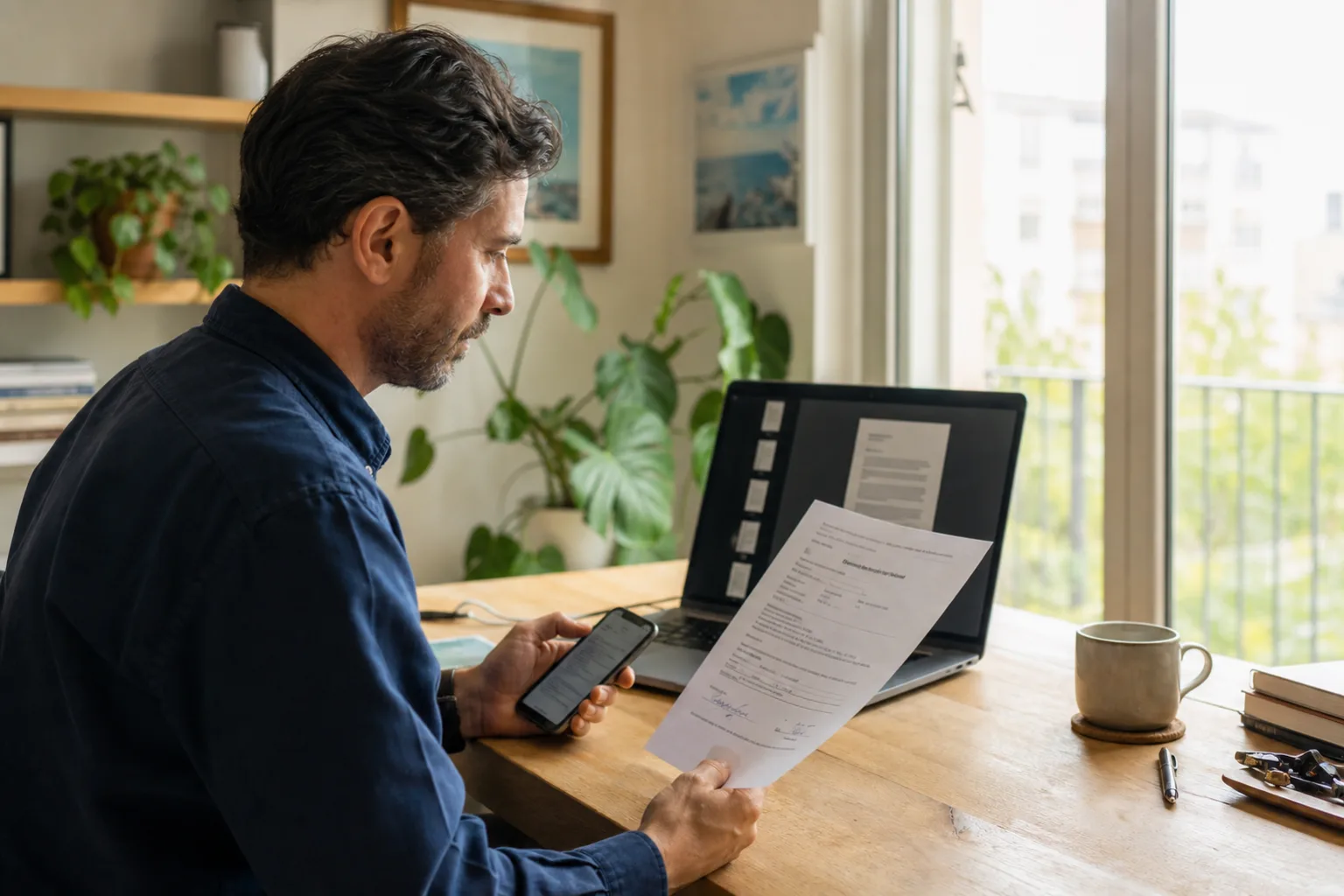
The easiest way to fax from a computer is to upload a PDF to an online fax service. It works on a Mac, Windows PC, or Chromebook and does not require a phone line.
You have three realistic options. The right one depends on whether this is a one-time document or part of a regular business workflow.
Option 1: Use a browser-based fax service
Open the service’s website, enter the destination number, upload the PDF, review the pages, and send. This is usually the shortest route for a document that is already on the computer.
Before paying, check the page limit, destination country, retry policy, and whether the price shown is a one-time charge or a recurring plan. Preview the final document because spreadsheet scaling and scanned page rotation can change during upload.
Option 2: Use an app on your phone
If you already use a fax app, transfer the PDF to your phone through AirDrop, cloud storage, email, or a cable. The app can be more convenient when you also need to scan a signature page or photograph a paper attachment.
Keep a single final PDF whenever possible. Mixing old drafts from the computer with newly scanned pages is an easy way to send the wrong version.
Option 3: Use email-to-fax
Some paid fax services assign an email gateway. You address an email in the format required by the provider, attach the PDF, and the service turns it into a fax. Gmail and Outlook do not perform this conversion by themselves. You need an account with a fax provider that supports the feature.
Email-to-fax is useful for repeated office workflows, but a browser or phone app is usually clearer for a one-time send because you can see the destination and page preview together.
What about Windows Fax and Scan?
The traditional Windows fax feature needs a compatible fax modem and an analog telephone line. A normal internet connection is not a substitute. For most current laptops, an online service is simpler than buying legacy hardware.
Final checks
- Confirm the fax number from a reliable source.
- Open the PDF and inspect every page.
- Add a cover sheet for shared lines.
- Check the total cost before authorizing payment.
- Save the sent file and the delivery result.
Service features and pricing vary. A fax delivery confirmation shows that the destination endpoint accepted the transmission, not that a person reviewed the document.